Search This Blog

Showing posts with label Access point. Show all posts

06 June 2010

Filtering MAC Address to Allow connection to DWL-G700AP

To improve security on your Local Area Network when you are using Wireless Access point of DWL-G700AP is by turning on MAC address filter feature.
To do so just log in to your DWL-G700AP wireless access point and then go to Advanched Tab. In Advanched Tab page click on Filter button.

There are 3 option in filtering Mac address feature:
  1. Disable Mac address filter
  2. Only allow MAC address(es) listed below to connect to DWL-G700AP
  3. Only deny MAC address(es) listed below to connect to DWL-G700AP

The first option is to allow all MAC address to connect to wireless access point.

The second option is to allow only listed MAC address to connect to wireless access point.

The third option is to dissallow listed MAC address to connect to wireless access point.

To activate Mac address filtering feature you have to click on the second or third option and then click apply button.

For the second and third option you have to add Mac address to the list by typing MAC address in the box of MAC address and clicking apply button. MAC address will be available in the MAC Filter List table.

05 March 2010

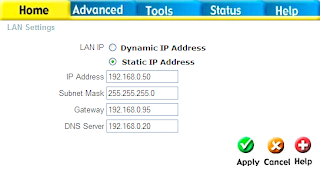
Change IP Address D-Link DWL-G700AP

How to Change IP Address of D-Link DWL-G700AP?

To change IP Address of D-Link DWL-G700AP Access point follows these steps:

  1. Login to your D-Link DWL-G700AP using Admin user.
  2. In Home page, click on LAN button.
  3. If your D-Link DWL-G700AP Access Point using Dynamic IP Address switch it into Static IP Address.
  4. Fill in IP Address you want to set up in your Access point. This IP address must be in the same class with your Local Area Network. For example if your network is 192.168.0.0/255.255.255.0 then the IP address must be in range of 192.168.0.1 to 192.168.0.254.
  5. Fill in appropriate subnet mask, gateway and DNS server for your LAN.
  6. Click on Apply button to save the new setup.

03 March 2010

Filtering computer to connect to DWL-G700

To improve security in your LAN, if you are using D-Link DWL-G700AP AirPlus G you can specify which computer or devices allow or deny connecting to your Access Point.

To do this setup you have to login to your D-Link DWL-G700AP using Admin user and then go to Advanced page, and then click on Filters button.

There are 3 options in this page:

1. Disabled MAC Filters.

This option means you allow all connection from any computers or devices.

2. Only allow MAC address(es) listed below to connect to DWL-G700AP.

This option means you only allow specified MAC address. After activating this option you have to entry MAC address of computers or other devices to be allowed to connect to this Access Point.


3. Only deny MAC address(es) listed below to connect to DWL-G700AP.

This option means you deny specified MAC address. After activating this option you have to entry MAC address of computers or other devices to be denied to connect to this Access Point.

After changing the options you have to click on Apply button to save the changes you have made. The D-Link will restart to apply the new setting for your access point.